
Choosing data tools and storage in research projects
INN University offers researchers secure data services for collecting and storing data based on Feide login, in addition to software for analysing research data. There are guidelines to adhere in order to ensure information security.
When collecting personal data in research, INN's data services must be used. You cannot use self-selected/private storage, - software or - cloud services without a particular reason and with a signed data processing agreement between INN and the data provider in place.
The General Data Protection Regulation (GDPR) obliges you to protect personal data, but there may be good reasons for other data to be treated confidentially. Some personal data is also sensitive/special. Thus, you must determine what category of data you will be processing, and in this guide, the categorisation is based on colour:
- GREEN data is freely available and contains no direct or indirect personal data..
- YELLOW data requires some data security, such as ordinary personal data..
- RED data is considered confidential, such as sensitive personal data, and requires additional data security.
- BLACK data is considered strictly confidential, such as information from or about persons who are under other protection, trade secrets, defense documents, and protected data on nature/species/habitats.
The colours indicate which data security level must be chosen for your project. There are fluid transitions between the colours. If you are unsure, the illustration at the bottom of this page may be helpful.
You cannot begin collecting yellow or red/black data without the research project being notified to SIKT Data Protection Services. You must also have selected and created Feide access to allowed data tools and storage locations in accordance with the setup below. What you have selected must be reported in the SIKT notification form.
Protecting data during the active phase of the research project
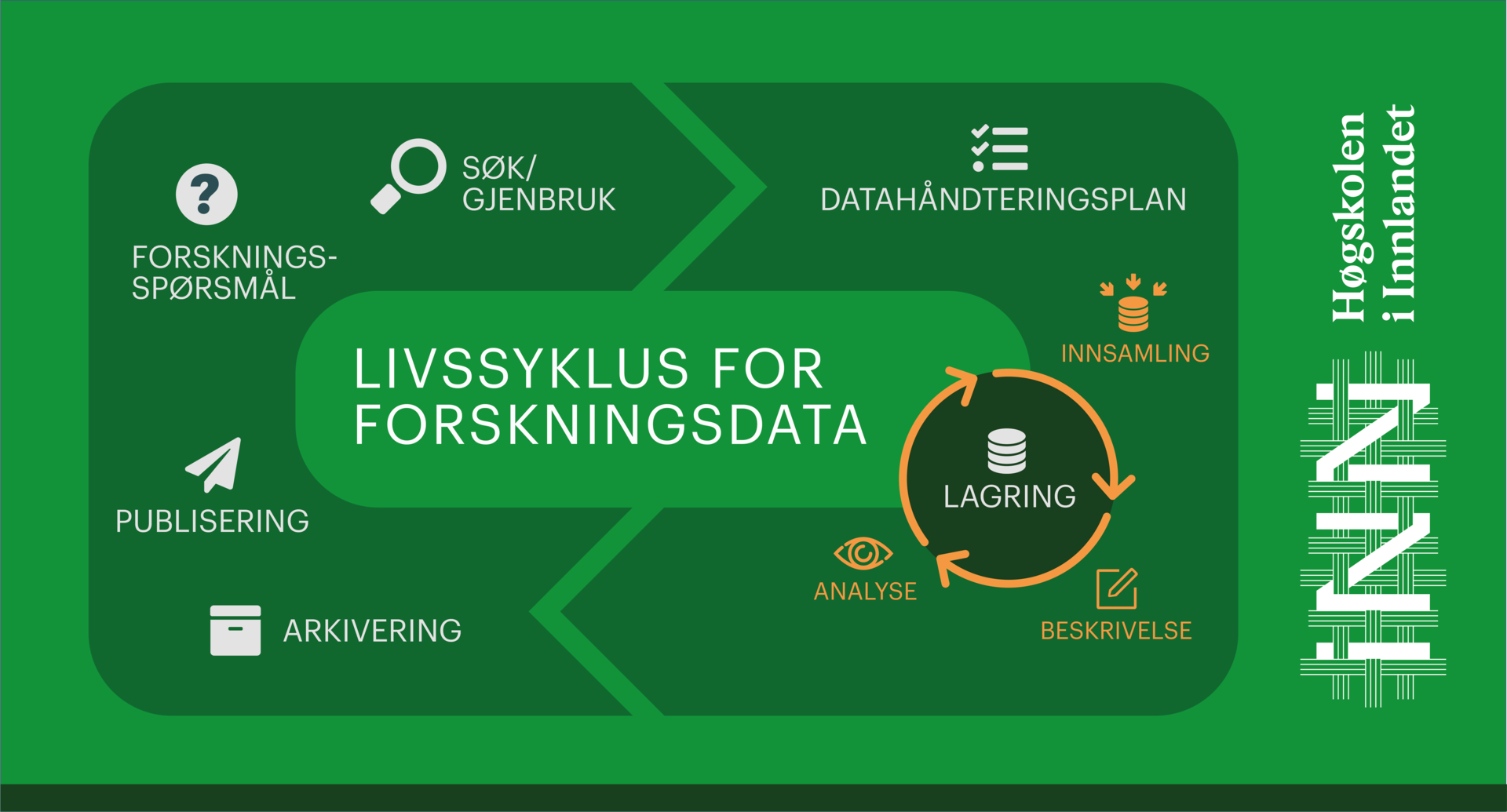
The guide you are reading now applies to the active 'warm/orange' phase of the project as depicted in the figure above. This is the phase while you are collecting, storing, and analysing data from, for example, interviews, physical/psychological tests, or questionnaires. In other words, this is the phase for processing personal data.
You should now select and create access to data tools for data collection and a secure storage location in relation to whether you have green, yellow, or red data. In addition, you should find out what kind of analysis tools you will use and the need for specific software. Follow up in the next paragraphs.
When the project is completed, you move your data to the 'cold/white' phase after de-identifying the material, i.e., deleting audio and image files (if applicable), linkage keys, contact lists, and all direct and indirect personal data. Your datasets are now without personal data (green data) and ready for publication and reuse. Data security is no longer required.
Choose secure tools for data collection
Everything listed requires Feide-login as a minimum, and most of the services are provided by the University of Oslo.
Questionnaire
All students and employees at INN have access to Nettskjema and can use it for data collection in research, teaching purposes, registrations, and more. Nettskjema is the only permitted questionnaire tool at INN for collecting personal information. Nettskjema also has a setting for anonymous data collection to avoid processing personal information where possible.
For login, information, user manuals, tips and tricks, please see the homepage of Nettskjema.
If data from Nettskjema is to be stored in Educloud Research or in TSD, you must choose the correct questionnaire template for direct connection, see the next paragraph about storage.
Interview
Audio recordings of interviews, whether individual or group-based, can be carried out on your smartphone or tablet, and the recordings are continuously sent to the Nettskjema server at UiO. The prerequisite is that the recording is done through 'Nettskjema Dictaphone', which is an encrypted application that prevents the audio files from being stored locally and/or synced to your private cloud services (remember: all data services must have Feide login). Start by creating a 'receiving form' in Nettskjema.no, and download the app from the iPhone App Store or Android Google Play.
User manual for Nettskjema Diktafon/Dictaphone
If data from Nettskjema Dictaphone is to be stored in Educloud Research or in TSD, you must choose the correct questionnaire template for direct connection (see the paragraph below on storage).
Remember to test if everything is technically in place before meeting your informants! It is mandatory to do practice recordings with a duration of at least 5 minutes.
Your informants who have consented to participation can also download the app and make their own audio recordings - if it is relevant for your project. The prerequisite is that the participant must be assigned the specific Nettskjema ID number where the recording should be stored.
Telephone interview
Interviews can be conducted as a phone meeting when it is not possible to meet the informants physically.
It is allowed to use Teams, Zoom or have a regular phone call. Skype or Skype for Business is no longer available as a Feide service.
The following prerequisites must be met:
- It is not allowed to make digital recordings of video or audio in the Teams or Zoom service itself
- Regardless of whether you choose Zoom or Teams, it must be based on a INN/Feide account, not a private account.
- Facetime, WhatsApp, and similar services cannot be used!
- Audio recording is done using the Nettskjema-Diktafon app and the mobile phone as the recording device (see the section above).
The phone is placed near the computer speaker to record the best possible sound. Audio testing is recommended, and consider using an amplifier if needed.
Be aware that digital audio recording does not have the same sound quality as a physical interview, which can increase the error rate during auto-transcription.
Photo og film
Photo
Photographing identifiable individuals is the same as processing personal information, which in turn requires data security and consent from those being photographed, including from those who may be recognisable in the background (third parties).
You can use the camera on your smartphone or tablet, and the photos will be continuously sent to the Nettskjema server at UiO. The condition is that the recording takes place via 'Nettskjema Bilde', which is an encrypted application that prevents the images from being stored locally and/or synced to your private cloud services (remember: all data services must have Feide login). Start by creating a 'reception form' in Nettskjema.no, and download the app in App store or Google Play.
User manual for Nettskjema Bilde/Photo (in Norwegian only)
Remember to test if everything is in place technically before you start!
If data from Nettskjema Bilde is to be stored in TSD or Educloud, you must choose the correct net form template for direct connection, see the next section on storage.
Your informants who have consented to participate can also download the app and take their own photos - if it is relevant to your project. The condition is that the participant must be assigned the specific net form ID number in which the images are to be stored.
Film/video
You can use the camera on your smartphone or tablet for video recording. The prerequisite is that the recording takes place via 'Nettskjema Viso', and it can only be used for projects registered in the Services for Sensitive Data (TSD) or Educloud Research for secure storage and processing. See information about TSD and Educloud for HINN users further down on this webpage.
Start by creating a 'receiving form' in Nettskjema.no and downloading the app from the App Store or Google Play.
Read carefully the user manual for Nettskjema Viso.
Video in research is challenging - create a data management plan and allocate sufficient time for preparation:
- There are strict rules for participation and consent, especially for data involving children or participants with reduced consent capacity.
- Consent from 'third parties' who are included in the recording.
- Difficult or impossible to anonymise in any meaningful way.
- Physical and technical conditions for camera placement in the room, lighting, and acoustics.
- Good audio quality is crucial for video recording. Smartphones may have limitations in this regard, so consider the possibility of using an additional microphone, soundproofing, or noise reduction.
- Allocate ample time for planning and testing, and most importantly, allocate enough time to draft a comprehensive information and consent form if you will be filming individuals, including the time needed to submit the project for evaluation to SIKT Data Protection Services.
- TIP: Good information written by UK Data Service about Anonymising qualitative data > Anonymising audio-visual data
Advanced options for video recording (multicamera, head-mounted camera, etc.):
Contact it-forskningsstotte@inn.no well in advance if you need to involve external resources for your planned research project. If such video research is part of a project application, funds should be allocated for it in the budget.
Choose a secure storage location for collected data
The choice of storage location is determined by the color code you have given your data (see above). If you have a mixture of green, yellow, and red data, the red category is the one you must base your decision on. Categorization can be difficult and one must also take into account the number of participants, amount of data, and duration. This involves three alternative storage locations. They are all well suited for collaborative projects for both internal and external partners at home and abroad.
One Drive Feide
If you collect personal data (yellow data) and/or anonymous data or data that does not concern individuals at all (green data), the data will be stored in access-controlled folders in One Drive Feide. If you do not already have One Drive Feide, you can get it by following instructions from the IT user support at HINN. You should not use private One Drive or other cloud services you have access to, only with Feide login!
Creation of Office 365 and One Drive with Feide login
Nettskjema form files and other datasets can be uploaded and stored in the One Drive Feide folder that you have created for your project. Remember to delete the files that have been downloaded to the "Downloads" folder on your local PC.
Educloud Research

You choose the research platform Educloud Research when you need to
- collect and process a limited amount of red/sensitive data, meaning few included participants sharing limited information.
- collect and process yellow data related to vulnerable individuals or groups, such as children in elementary school.
- you or others perceive that the data requires an extra layer of protection.
- perform heavy computing tasks (High Performance Computing) in "FOX".
Educloud Research is one of the research platforms at the University of Oslo and has a service agreement with INN. Educloud is well suited for internal, national, and international collaborative projects. Partners apply for access to the relevant ec-folder. Read more about the service here.
Due to higher security levels, the creation and access to the Educloud Research folder is more cumbersome compared to One Drive Feide. After two-step login (password + one time code), you will enter a new desktop where you can create movie folders and have immediate access to relevant software for analyzing numbers and text, as well as office programs.
Procedure for setting up a project space in Educloud
Research Educloud Research folder can be ordered for a given project for a given project period, not as a personal or shared folder that can be kept indefinitely. In collaborative projects, the project manager applies for and administers the Educloud folder, and other participants/partners apply for access (see the next paragraph).
- Ordering main project folder in Educloud@HINN - follow these instructions
- Initial setup of Educloud Research - follow these instructions
NB! All registrations you make are as a Feide user with an @inn.no email address, do not use a private email address or adress from another workplaces.
Procedure for accessing an existing project folder in Educloud Research
- Ask the project manager (administrator) which folder number the research project has in Educloud ("ec-number").
- Apply for access to the created main folder for your project by following these instructions. Have your bank ID ready.
- Choose Chrome as your browser for logins and downloads. Firefox may be an alternative. You must install the VMWare Horizon software to establish a connection between your PC and the Educloud server at UiO.
- Set up two-factor authentication on your mobile phone as explained here (scroll down to step 3).
- The project manager (administrator) must approve your application before you get access.
- From here, you log in to work - Sign in
- You will now be on a new desktop with the INN logo, which has the same functionality as you are used to, except for Outlook. Available software and web applications can be found either as shortcuts, icons, or in the start menu.
- Brukerveiledning for Educloud Research
- Note that when using Nettskjema for data capture in the project, it should be connected to the Educloud folder you create.
Services for sensitive data (TSD)

You choose the research platform TSD when you need to:
-
Collect and process red/sensitive data or black/highly confidential data.
-
Conduct a health research project that has been assessed by the Regional Ethics Committee (REK).
-
Perceive that you or others have data that requires an extra strong layer of protection. AND/OR
-
Perform High Performance Computing tasks in 'Colossus'.
TSD is one of the University of Oslo's research platforms and is included in HINN's service agreement. TSD is well-suited for internal, national, and international collaborative projects. Partners apply for access to the relevant TSD. Read more about the service here.
Due to the high level of security, setting up and accessing TSD can be cumbersome, especially in the beginning. After two-step login (password + rolling code), you will enter a new desktop where you can create file folders and have immediate access to relevant software for analysis of numbers and text, as well as office programs. Internet access is not available in TSD by default.
Procedure for creating a project folder in TSD
A TSD folder can be ordered for a given project and project period, not as a personal or shared folder that can be kept indefinitely. In collaboration projects, it is the project leader who applies for and manages the TSD folder, while other participants/partners apply for access (see next paragraph).
- To order a project space in TSD@HINN - send an email to it-forskningsstotte@inn.no
- First-time setup - follow these instructions
- Login - follow these instructions
NB! All registrations you make are as a Feide user with an @inn.no email address, do not use a private email address or one from another workplace.
Procedure for accessing an existing project folder in TSD:
- Ask the project leader (administrator) for the folder number ('p-number') for the research project in TSD.
- Follow these instructions to apply for access to the main folder created for your project. Have your BankID ready.
- Select Chrome as the browser for login and downloads. Firefox may be an alternative.
- You need to install the software VMWare Horizon (see point 1) to establish a connection between your PC and the TSD server at UiO.
- Set up two-factor authentication on your mobile phone
- The project leader (administrator) must approve your application before you gain access.
- From here, you log in to work - Sign in
- You will now be on a new desktop that has almost the same functionality as you are used to, except for internet access. Available software and web applications can be found either as quick selections, icons, or in the start menu, or they can be ordered specifically (note that this may incur additional costs).
- User guides for TSD
- Note that when using Nettskjema for data collection in the project, it must be connected to the TSD folder you create. See detailed information here.