
Guidance
To start printing from uniFLOW Online for Mac, you must first log in to the service.
Step 1: Log in to uniFLOW Online
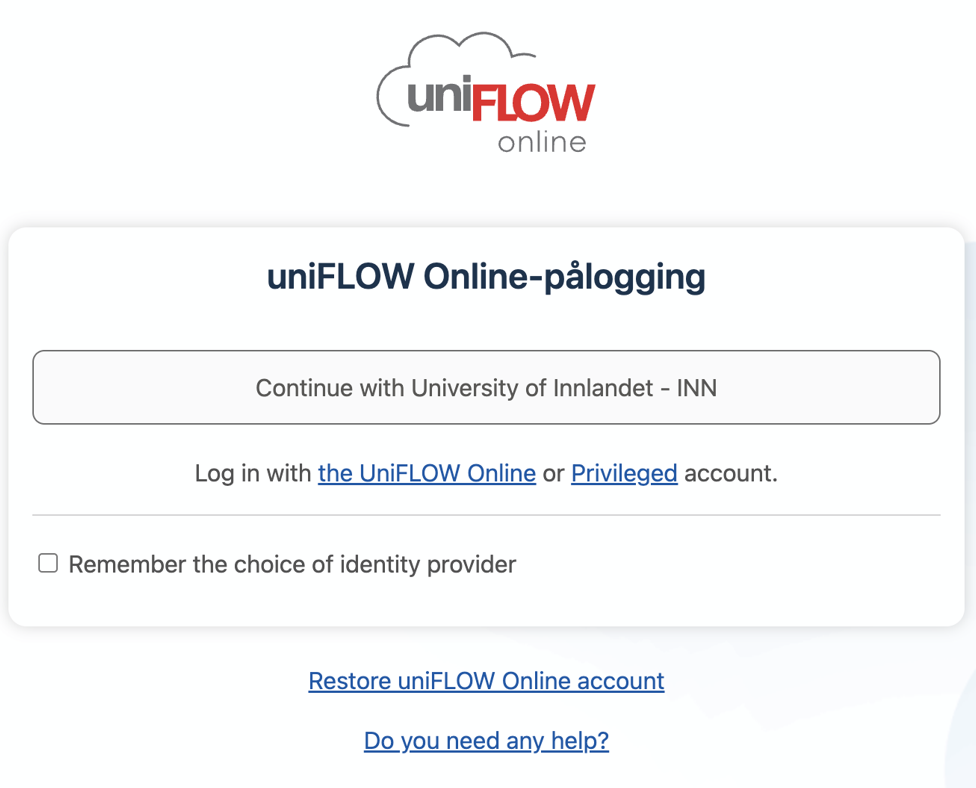
- Go to https://inn.eu.uniflowonline.com/
- Click «Continue with University of Innlandet – INN»
.png)
- Log in with mail address, password + two-factor authentication
.png)
Step 2: Add new printer
Navigate to the toolbar on the left-hand side and click «Start printing»
.png)
Step 3: Download print driver for Mac
.png)
Step 4: Double click installation file from “downloads” folder
.png)
Step 5: Navigate to your Mac desktop
- Open “SmartClientMac” location on the left-hand side, as shown
- Open “SmartClientForMac.pkg”
- Click “Continue” until installation is completed
.png)
Step 6: Allow uniFLOW SmartClient permissions, if prompted

-
Step 7: Finish Login
- Click “Continue with University of Innlandet – INN”
Step 8 - Start uniFLOW client by clicking “Start”

- UniFLOW icon indicates that the client is running on the top toolbar

Choose «INN Secure Print» when printing

Do you need help?
You can contact IT support by email brukerstotte@inn.no or telephone 62 43 00 03 (weekdays 8:00 AM - 3:30 PM.)