
Apple: Guide to first-time mobile app setup
Download the "Uniflow Online" app from here:
Apple Store (iOS): Uniflow Online
You can also scan the QR code displayed on the printer screen. You will then be guided to the correct app and can install it.
Step 1
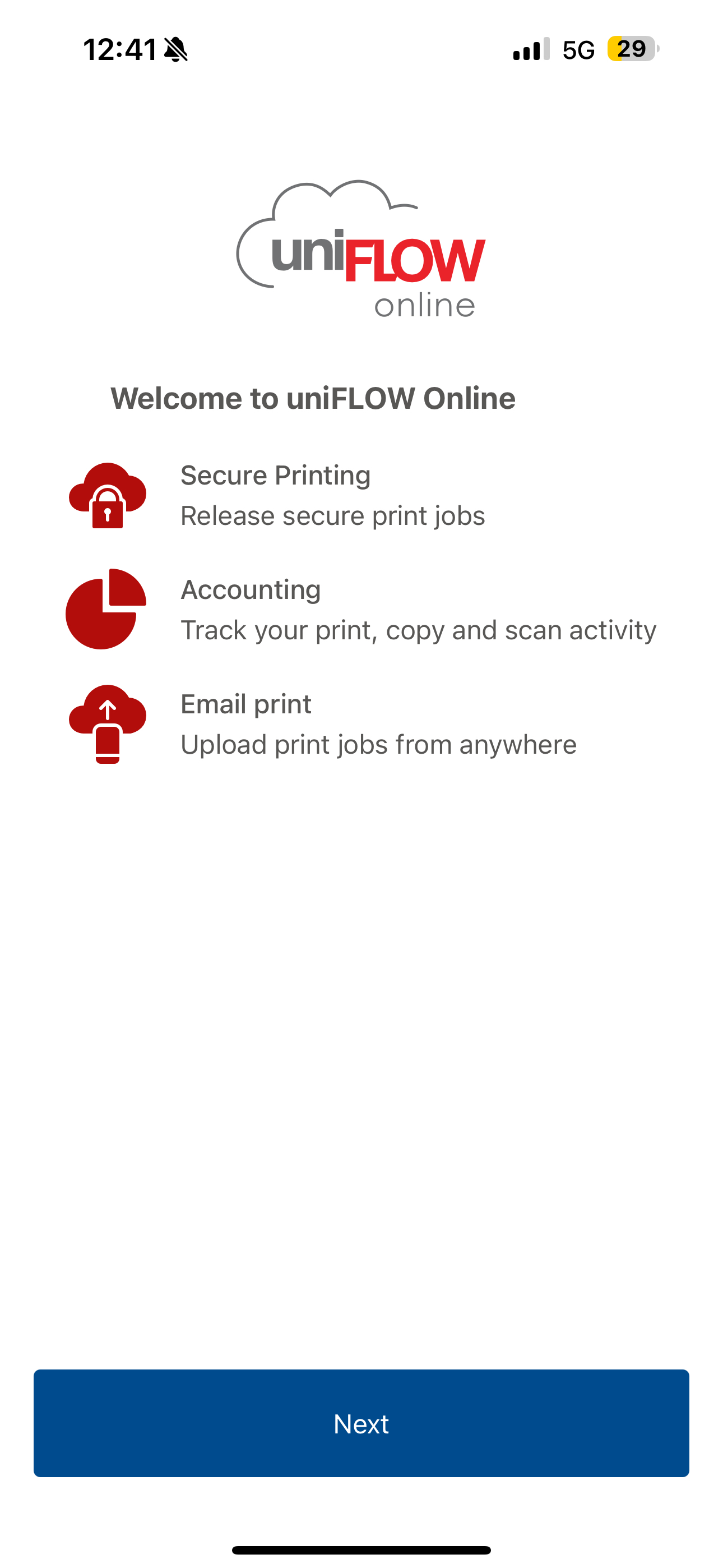
Launch the app and select the "Next" button
Step 2
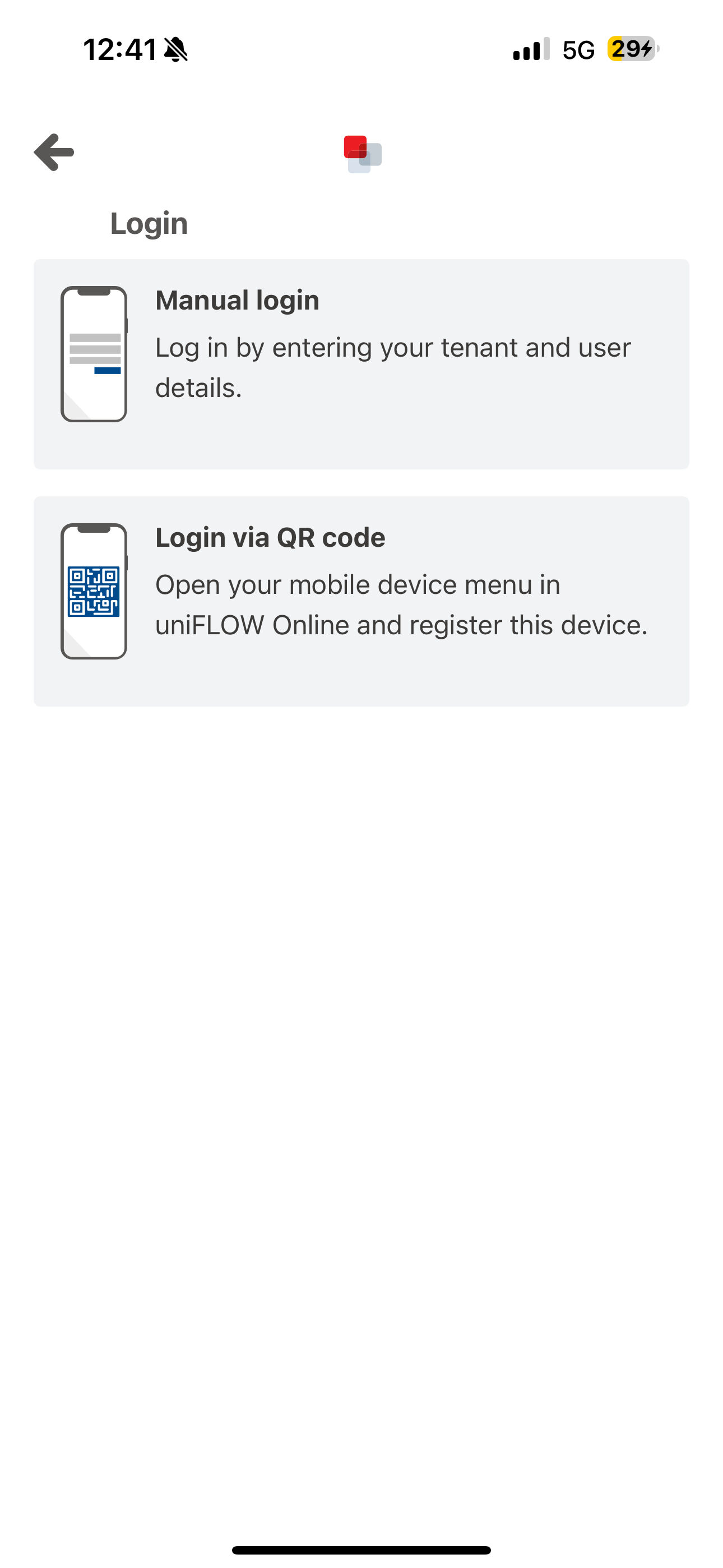
Select "Manual login"
Step 3
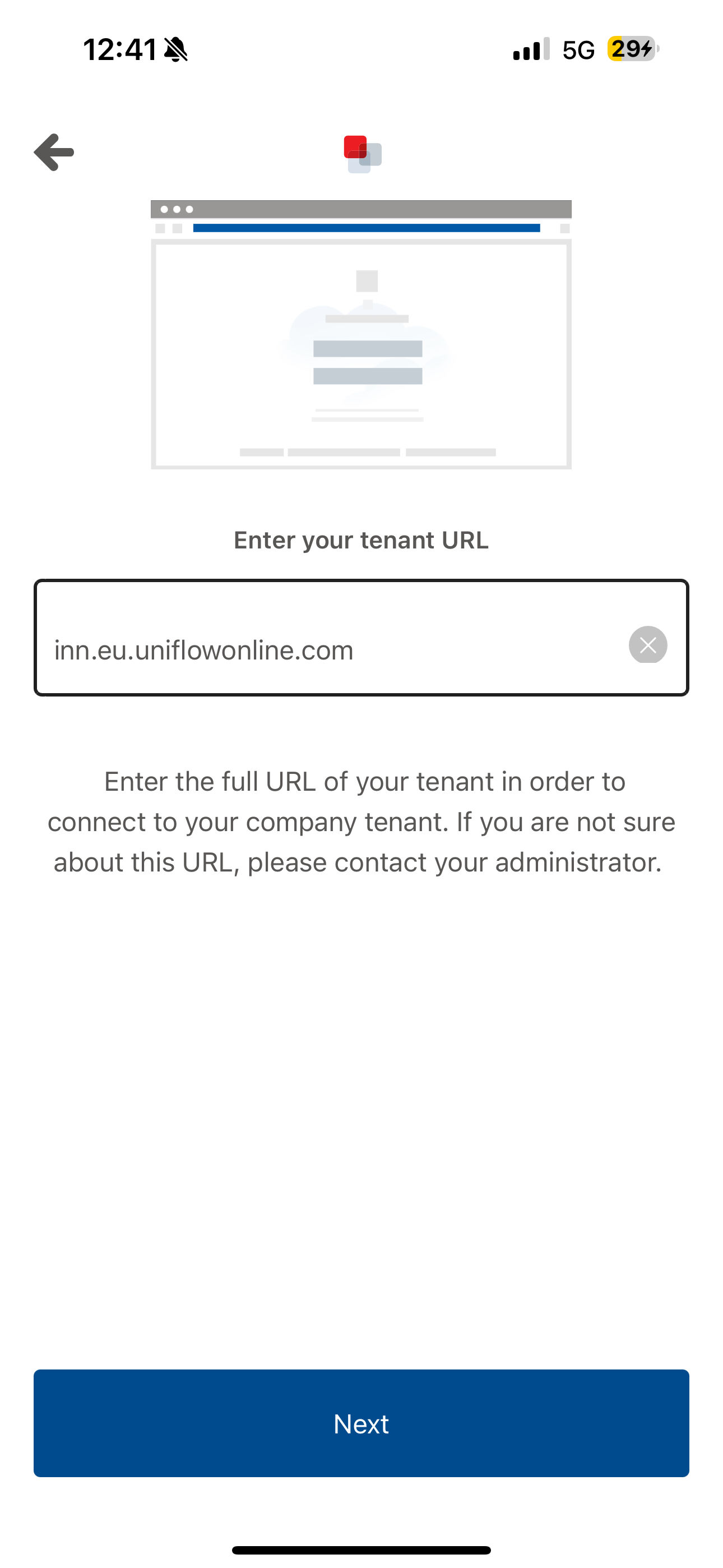
Enter the address "inn.eu.uniflowonline.com" in the text field and select the "Next" button.
Step 4
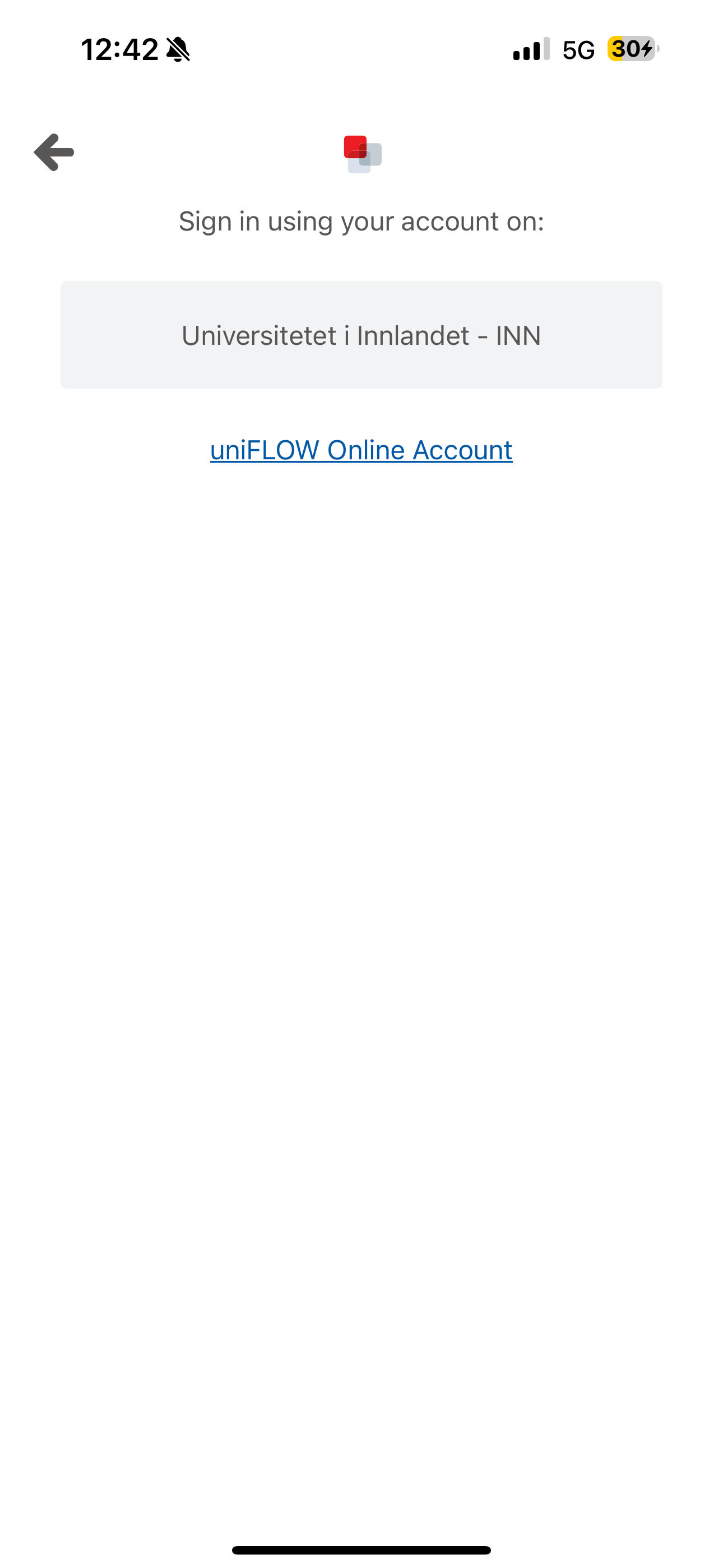
Press the button "Universitetet i Innlandet" under the text "Log in to your account at:"
Step 5
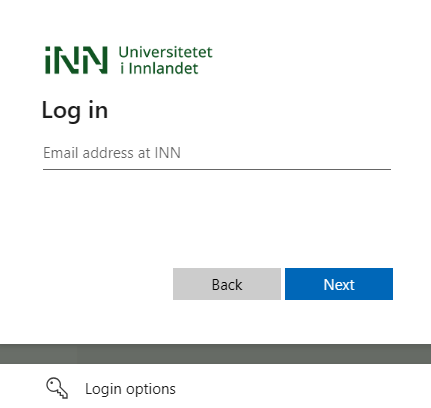
If you are asked to enter "Email address at INN", enter it and log in with "Next". Students use "studentnummer"@stud.inn.no as their email address.
Step 6
Perform two-factor login if prompted.
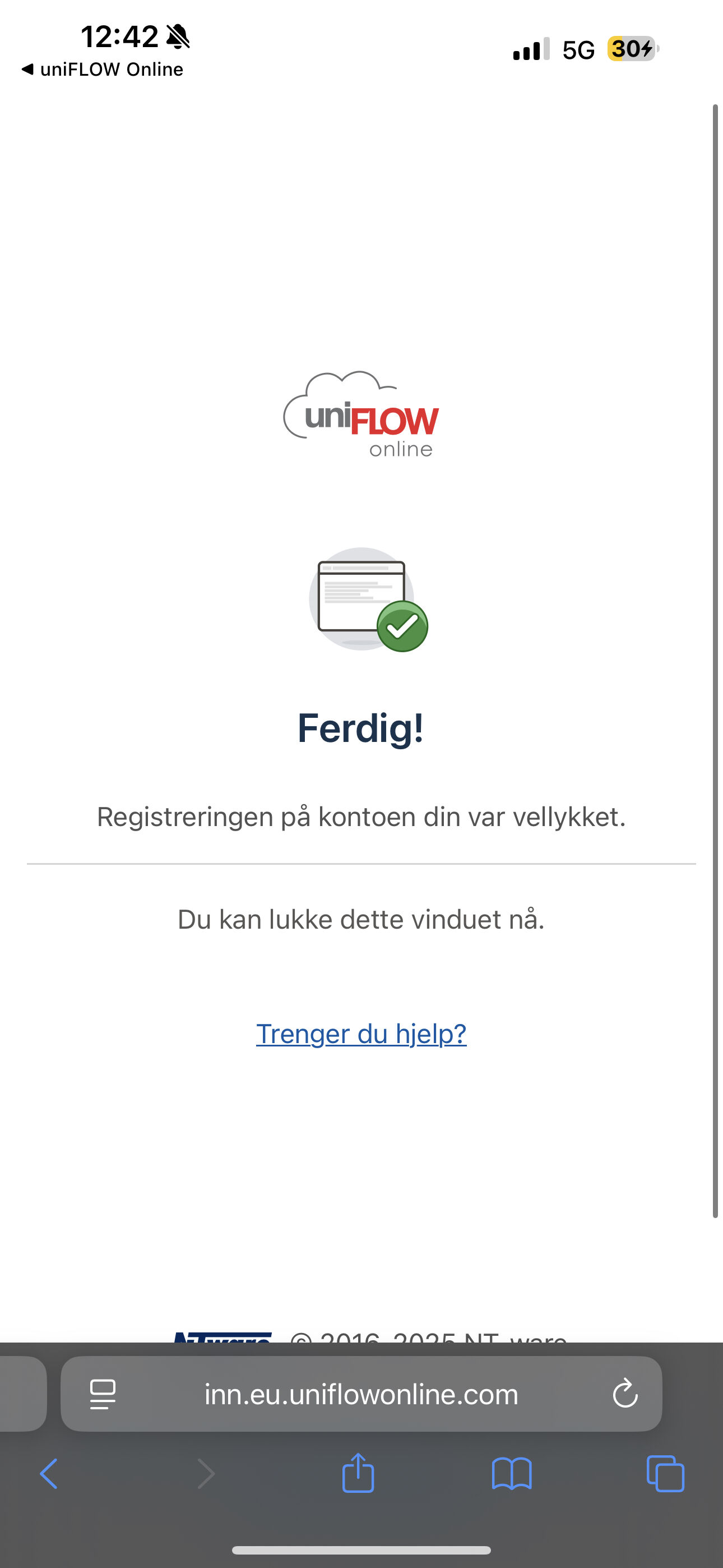
When the image "Done!" appears, you are finished registering in the mobile app and can start using it.
How to use the app
This is the main menu in the app and here you get an overview of the use of the printing system as well as remaining quota information and quota usage.

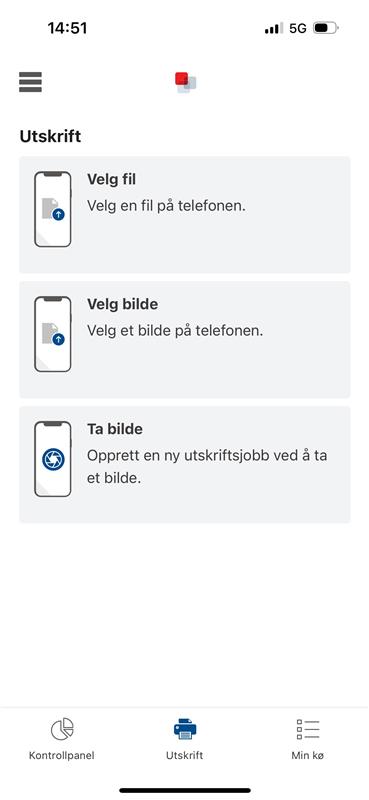
At the bottom of the line you can select "Print" to print from the device. Here you can select File upload, image upload or "Take picture" to use the device's camera.
The "My Queue" menu item shows print jobs you have in the queue that can be sent to the printer.
Select a print job in the queue and select "Release" to start printing.

The camera on your device will open and you will be asked to focus the camera on the QR code on the printer you want to print to. The document will then be printed immediately.
Do you need help?
You can contact IT support by email brukerstotte@inn.no or telephone 62 43 00 03 (weekdays 8:00 AM - 3:30 PM.)w