If a mobile app is set up, you can use this to print - without having to identify yourself with a student or employee card at the printer/copier. You can print from your mobile phone (by using the app, download the file there and send it to print) or if you have printed on a PC/Mac, you will find the print job in the app - and have the opportunity to release it there - and have it printed on the machine of your choice.
PublishedApr. 11, 2025 11:27 AM - Last modifiedSep. 17, 2025 2:57 PM
Step 1: Launch the app on your mobile device
Step 2 - Go to the menu item "My Queue"
Select a print job in the queue and select "Release" to start printing.
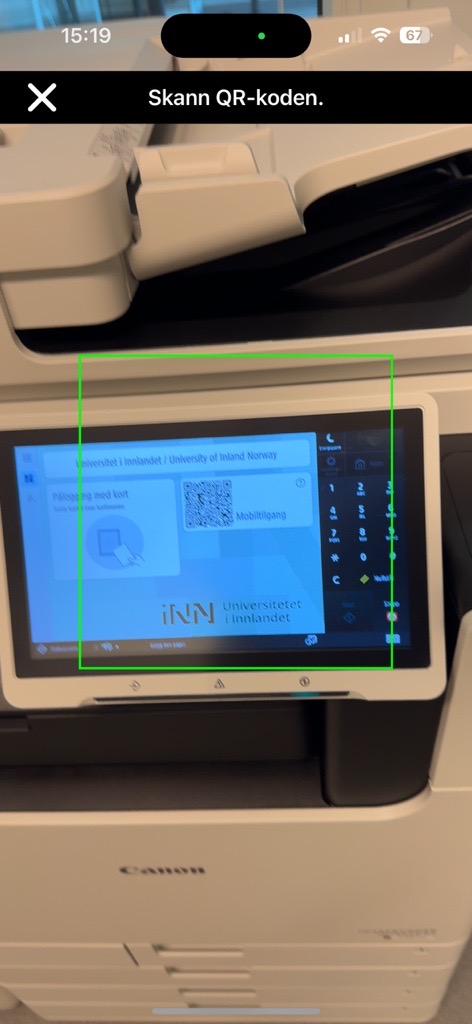
Step 3: Scan the QR code
The camera on your device opens and you're prompted to focus the camera on the QR code on the printer you want to print to. The document will then be printed immediately.
Need help?
You can contact IT support by e-mail brukerstotte@inn.no or phone 62 43 00 03 (weekdays 08:00 - 15:30.)