
Appendix manager in WISEflow
The Appendix manager is used to create or upload attachments that must be submitted digitally together with your main answer. You can use it for drawings, images, files, LaTeX formulas, and code.
The tools available to you will vary depending on the exam setup.
Available tools
• Drawing
• Webcam (image capture)
• Code editor
• File upload
• Formula editor (LaTeX)
All attachments you save will automatically be submitted together with your main exam answer.
FLOWlock
In FLOWlock, the Appendix manager is located on the right side of the writing area. When you choose to add an attachment, the Appendix manager opens in a separate tab.
Open the appendix manager
Remember to save the attachment before closing the tab.
Legge til vedlegg
Click “New attachment” and choose the tool you need. Remember to save before closing the tab.
Insert attachments into your answer
Some attachments can be inserted directly into the text.
- Use the double-arrow button to insert the content at the cursor position.
- After inserting, you can resize the element in the text field.
Code editor in FLOWlock
In FLOWlock, code can be copied and pasted directly into the text editor.
Highlight the code and select Code block under Paragraph for correct formatting.
You cannot add code as a separate attachment in the submission.
FLOWmulti
Open the Appendix manager
The Attachment Tool is available at the top of the task for open questions.
Add an appendice
Click “New appendix” and choose the tool you need.
Save the appendice
The number of appendices per question is shown as a number inside a circle.
Tool details
Drawing
Used to create figures, sketches, and diagrams directly in the browser.
Webcam
Used to take photos, for example of drawings or models.
Photos can be edited directly in WISEflow—adjust brightness or crop the image if needed.
If you use an external webcam, it must be connected before the exam starts.
Code editor
Supports a range of programming languages (e.g. JavaScript, Python, C++, Java, HTML, CSS, SQL, PHP).
Offers syntax highlighting, structure error checking for some languages, and several editor themes and font sizes.
File upload
Uploads documents from your device and adds them as attachments.
Not available for exams using a locked browser.
Formula editor
Used for writing LaTeX formulas. A list of available commands can be found in the WISEflow documentation.
Delete a appendix
You can delete appendix directly in the Appendix manager:
- Open the appendix manager
- Select the appendix
- Click the bin icon
- Confirm deletion
Submitting handwritten drawings and handwritten material
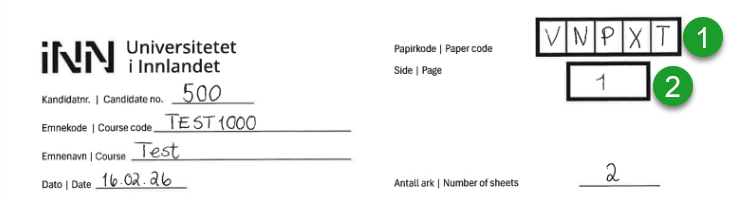
In some on‑campus exams, you can submit handwritten calculations, drawings, or other physical paper as part of your answer. You will receive a paper code that must be filled in correctly. The pages will be scanned after the exam and added to WISEflow as part of your digital submission.
This requires that all pages are labelled according to fixed rules.
Instructions for participants
If you submit handwritten pages, each page must be labelled in the upper right corner with:
- Paper code (your personal code, given in the exam room)
- Page (where the page belongs in your submission)
Use A1, A2, A3, etc. if the pages are attachments to your digital submission (A = appendix). Use 1, 2, 3, etc. if your full answer is handed in on paper. Write the total number of pages at the bottom right.
Checklist before submitting your papers
Check that:
- all pages have a paper code and a unique page number (e.g. A1 or 1)
- the codes are in the upper right corner
- the codes are written in block letters
- the area around the codes has no other writing
If there is an error: Cross out the entire code and write it again, or use a new sheet.
Read more about paper submission at help.wiseflow.net